Findings & checks · 0 flagged
Every scanned point with the score it earned and what moved between them.
First recorded scan — no prior version to compare against.
The primary manifest — the file an agent reads to learn what this artifact does.
kill-process-mcp 🔫
<p align="left"> <img src="https://img.shields.io/github/stars/misiektoja/kill-process-mcp?style=flat-square&color=magenta" alt="GitHub Stars" /> <img src="https://img.shields.io/github/license/misiektoja/kill-process-mcp?style=flat-square&color=blue" alt="License" /> <img src="https://img.shields.io/github/last-commit/misiektoja/kill-process-mcp?style=flat-square&color=green" alt="Last Commit" /> <img src="https://img.shields.io/badge/maintenance-active-brightgreen?style=flat-square" alt="Maintenance" /> </p>
Cross-platform MCP (Model Context Protocol) server exposing LLM-accessible tools to list and kill OS processes via natural language queries.
Perfect for shy ninjas who just want rogue processes gone: "Find and nuke the damn CPU glutton choking my system!"
<a id="demo"></a>
Demo
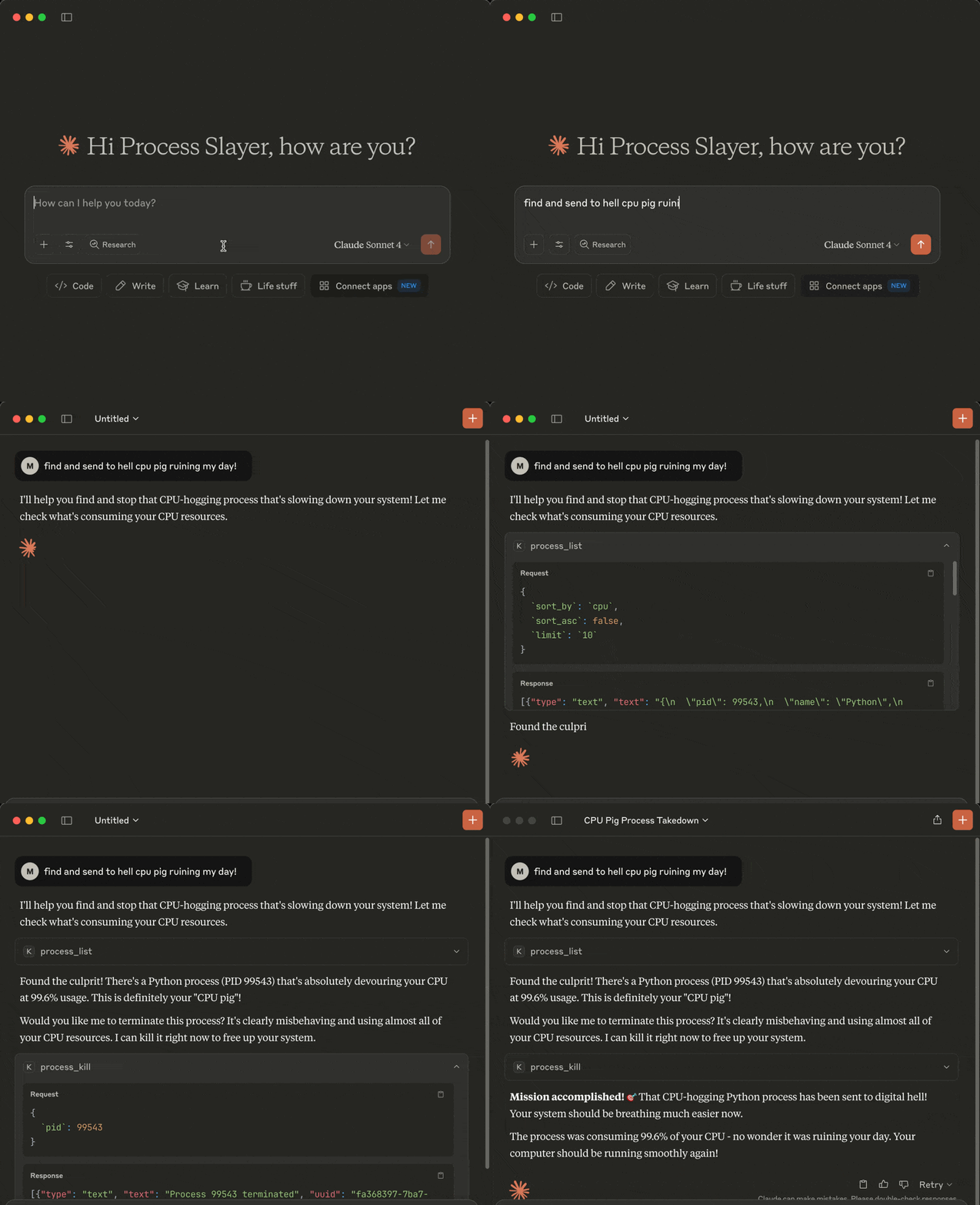
<a id="tools"></a>
Tools
The following tools are exposed to MCP clients:
process_list: Lists running processes sorted by CPU or memory with optional name, user, status, CPU/memory thresholds, system-process filtering, sort order and limitprocess_kill: Terminates the selected process (with extreme prejudice!)
<a id="requirements"></a>
Requirements
- MCP-compatible LLM client (like Claude Desktop or Cursor)
- OS: macOS/Windows/Linux
- Python 3.13 or higher
- uv
- Libraries:
mcppsutil
<a id="installation"></a>
Installation
You can install kill-process-mcp in two ways:
- Preferred: use
uvx- no cloning or setup needed. - Alternative: clone the repo and set up manually.
<a id="1-install-uv-required-for-both-methods"></a>
1. Install uv (required for both methods)
Install uv if missing:
pip install uv

# or on macOS:
brew install uv
In case of the preferred uvx method you can now configure your MCP client (skip the cloning step below).
<a id="2-clone-the-repo-and-install-only-required-for-alternative-mode-skip-for-uvx"></a>
2. Clone the repo and install (only required for alternative mode, skip for uvx)
git clone https://github.com/misiektoja/kill-process-mcp.git
cd kill-process-mcp
Install dependencies:
uv sync<a id="3-configure-mcp-client"></a>
3. Configure MCP Client
<a id="-claude-desktop"></a>
🟣 Claude Desktop
Register the kill-process-mcp as an MCP server in Claude Desktop.
Add the following to claude_desktop_config.json file if you want to use uvx method (recommended):
{
    "mcpServers": {
        "kill-process-mcp": {
            "command": "uvx",
            "args": ["kill-process-mcp@latest"]
        }
    }
}
In case of an alternative manual method using a cloned repo:
{
    "mcpServers": {
        "kill-process-mcp": {
            "command": "uv",
            "args": [
                "run",
                "--directory",
                "/path/to/kill-process-mcp",
                "kill_process_mcp.py"
            ]
        }
    }
}
Default claude_desktop_config.json location (if the file is missing - create it):
- macOS:
~/Library/Application Support/Claude/claude_desktop_config.json - Windows:
%APPDATA%\Claude\claude_desktop_config.json
Replace /path/to/kill-process-mcp with the actual path of your project folder (remember to escape backslash characters if you're on Windows, e.g.: C:\\path\\to\\kill-process-mcp)
Restart Claude Desktop and it should be able to talk to the kill-process-mcp server.
You can check if the server is loaded by going to Profile → Settings → Connectors.
<a id="-cursor"></a>
🟢 Cursor
Register the kill-process-mcp as an MCP server in Cursor.
Open Cursor settings and click Tools & MCP → Add Custom MCP.
Once the mcp.json file opens, add the following if you want to use uvx method (recommended):
{
    "mcpServers": {
        "kill-process-mcp": {
            "command": "uvx",
            "args": ["kill-process-mcp@latest"]
        }
    }
}
In case of an alternative manual method using a cloned repo:
{
    "mcpServers": {
        "kill-process-mcp": {
            "command": "uv",
            "args": [
                "run",
                "--directory",
                "/path/to/kill-process-mcp",
                "kill_process_mcp.py"
            ]
        }
    }
}
Default mcp.json location:
- macOS/Linux:
~/.cursor/mcp.json - Windows:
%USERPROFILE%\.cursor\mcp.json
Replace /path/to/kill-process-mcp with the actual path of your project folder (remember to escape backslash characters if you're on Windows, e.g.: C:\\path\\to\\kill-process-mcp)
You should be able to talk to the kill-process-mcp server now.
You can check if the server is loaded by going to Cursor settings and clicking Tools & MCP.
<a id="-optional-install-a-persistent-shim"></a>
Optional: Install a Persistent Shim
If you prefer faster startup or offline use while using the uvx method, you can install a local shim once:
uv tool install kill-process-mcpThen change your LLM client config to:
{
  "mcpServers": {
    "kill-process-mcp": {
      "command": "kill-process-mcp"
    }
  }
}
<a id="example-hit-contracts"></a>
Example Hit Contracts
Here are some example prompts you can use with your MCP-compatible AI assistant when interacting with this MCP server:
- Kill the damn process slowing down my system!
- Check my top 5 CPU parasites and flag any that look like malware
- List the 3 greediest processes by RAM usage
- Exterminate every process with Spotify in its name
- List Alice's Python processes, max 10 entries
- Which processes are over 2% CPU and 100 MB RAM
- anything else your imagination brings ...
<a id="upgrade"></a>
Upgrade
When using uvx, it automatically fetches and runs the latest published version each time your LLM client starts.
If you're using the alternative manual method with a cloned repo, update with:
cd kill-process-mcp
git pull
uv sync --reinstall
<a id="known-issues"></a>
Known issues
We do not pin Python. New minor versions are usually supported on day one via wheels.
If you're using the alternative manual method with a cloned repo and you hit a build error (e.g pydantic-core or rpds-py failing with a Rust toolchain message), it usually means the ecosystem is catching up with the latest Python version. In most cases this is temporary and fixed shortly by upstream packages.
Try a clean rebuild in such case:
cd kill-process-mcp
rm -rf .venv
uv sync
If that still fails, temporarily use your previous Python minor version until compatible wheels are published (typically within a few days).
<a id="disclaimer"></a>
Disclaimer
This MCP server is armed and dangerous. If you snipe the wrong process, that's on you.
Proceed with caution.
<a id="change-log"></a>
Change Log
See RELEASE_NOTES.md for details.
<a id="license"></a>
License
Licensed under GPLv3. See LICENSE.